Download
First, you need to download the template from a GitHub page: https://gitfront.io/r/user-6925598/nrCxGSazrVFj/thankyou-gtms-tag/blob/output/template.tpl
On this page, you can download it by clicking on Raw.
Creation
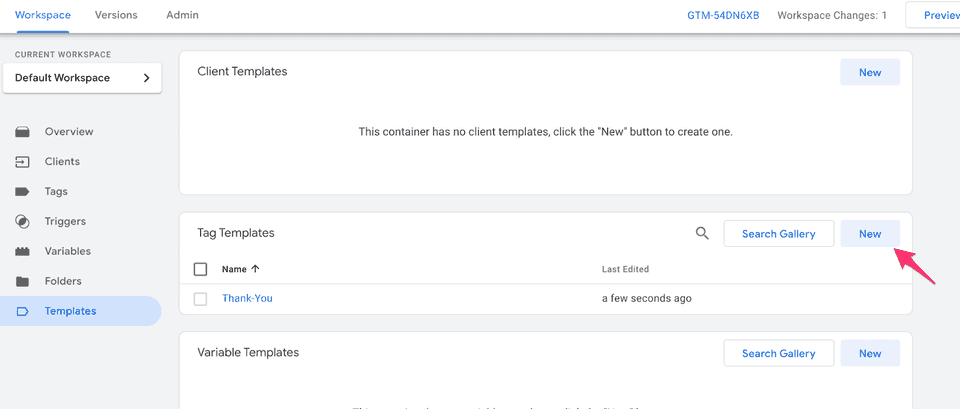
Once downloaded, you can create a new template. Go to the template page, and click new on the Tag template section.
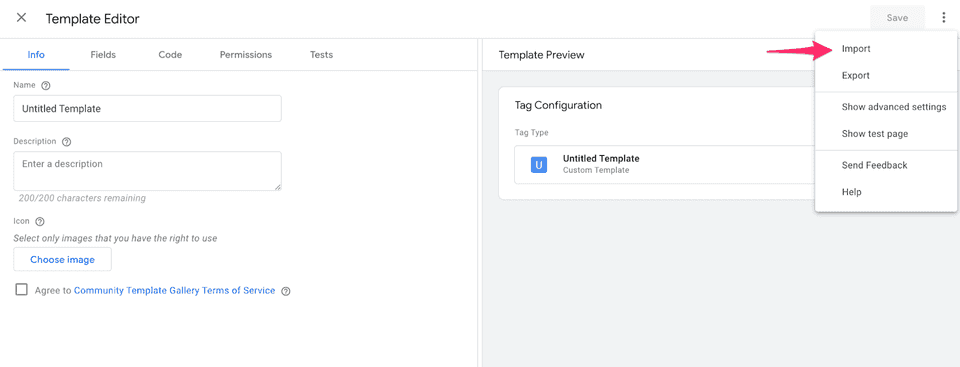
On this page, you can find the import option by clicking on the menu in the top right corner. Then you can select the template.tpl files previously downloaded and extracted.
The editor will refresh with the code template; you can save and close this page.
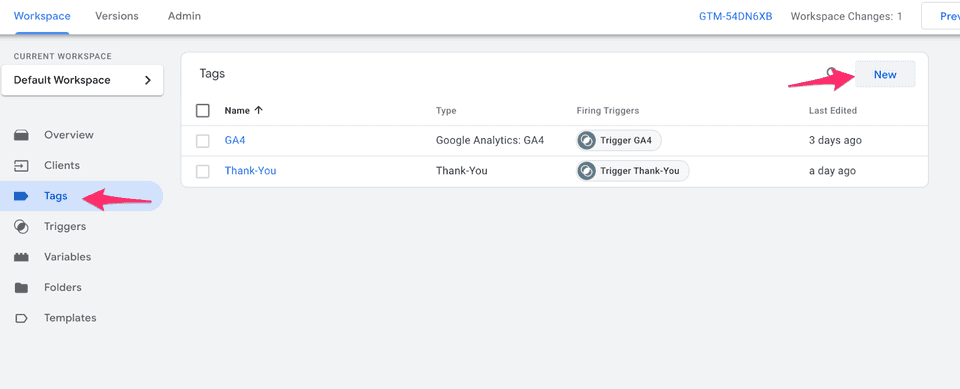
After the template creation, you can now create the tag itself. Go to the Tags section and click new.
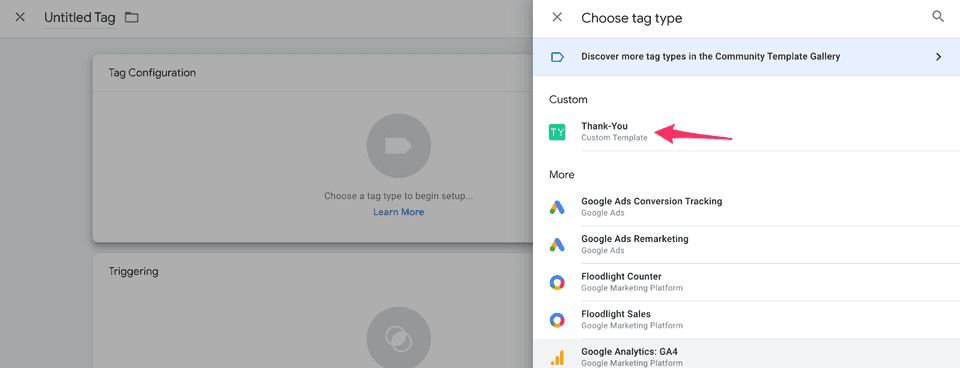
Select the custom template previously created named ThankYou Analytics.
On the configuration of the tag, you have different options.
Attribut | Mandatory | Description |
Tag Id | Yes | The tag id differs for each client and will be provided by ThankYou Analytics. |
API URL | Yes | Unless asked, the value should be https://s-ping.thank-you.io |
Consent Status | Yes | The consent status is a boolean from the variable analytics_consent configured in GTM client-side. |
Cookie Domain | No | It's the domain where the cookies will be stored. Auto is the default value and means that the cookie will be stored on the domain sending the request. If you want to store the cookies on a specific domain, specify it here. (Usually used for cross-domain websites) |
Client domain list | No | It's a list of domains not considered a referrer. Usually, the domain list of a website including subdomains as well. |
Disable CNIL Exemption | No | Disable the CNIL consent exemption, disable the writing of cookies if the user has not given consent. |
Override cookie names | No | The default cookie names given by ThankYou Analytics can be overridden if needed. |
Events | No | Names of the events related to actions on the page (view, consent, conversion, enrichment, etc.). |
Events > Page view event name | No | Name of the event related to the Page View event. |
Events > Consent event name | No | Name of the event related to the Consent event. |
Events > Conversion events list | No | Name of the events related to the Conversion event. |
Events > Refund event name | No | Name of the event related to the Refund event. |
Events > Order Enrichment event name | No | Name of the event related to the Conversion Enrichment event. |
Events > Activate conversion pre-validation | No | Sends a conversion in 2 steps: pre-validation during checkout, followed by confirmation after payment. |
Campaign duration in minutes | No | Campaign duration before expiration |
Session duration in minutes | No | Session duration before expiration |
Client referrals exclusion list | No | List of referrals excluded |
Conversion dimensions | No | List of dimensions to be sent with the conversion request. This list should contain the name of the parameter and the related value. |
Audience dimensions | No | List of dimensions to be sent with any event. This list should contain the name of the parameter and the related value. |
Click on the Triggering block at the bottom of the page to add a Trigger
Click on the plus icon on the top right corner to create a new one
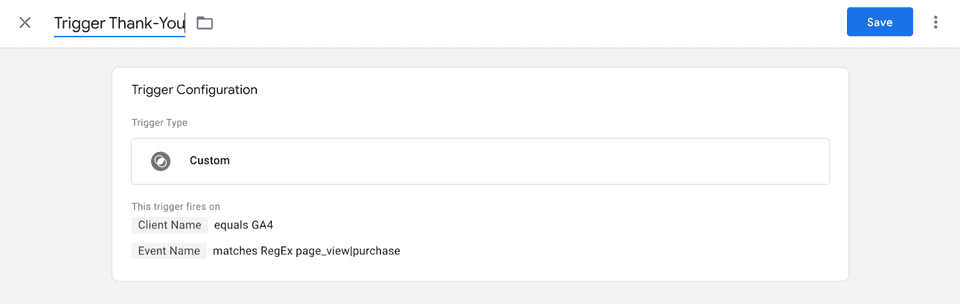
On Trigger Configuration, choose Custom
Then select the radio button Some Events
On the Drop down below, the first condition is Client Name equals GA4 (if Client Name is not present on the list, you can select it through Choose Built-In Variable)
Add another line with this second condition, Event Name matches RegEx page_view|purchase
Name the trigger Trigger ThankYou Analytics and save
Your trigger should look like this:
The easiest way to send appropriate data to the server and use the ThankYou Analytics tag is to use the GA4 tags. The configuration should already include a transport URL and send at least two events to the server, page_view, and purchase.
A page_view should be configured on the Page View event with no consent exception. This page_view will be sent to the server on each page and should trigger the ThankYou Analytics tag.
A parameter needs to be added with the analytics consent status: analytics_consent. This is the parameter read in the ThankYou Analytics server-side configuration. The value of this parameter should be a boolean.
To respect the RGPD rules, if you have tags other than the ThankYou Analytics tag on the server side, all the CMP information should be sent with the request. Then on the server, all triggers/tags should check if the user provides consent. Only the ThankYou Analytics tag (or other consent exempted tag) can be triggered without consent.
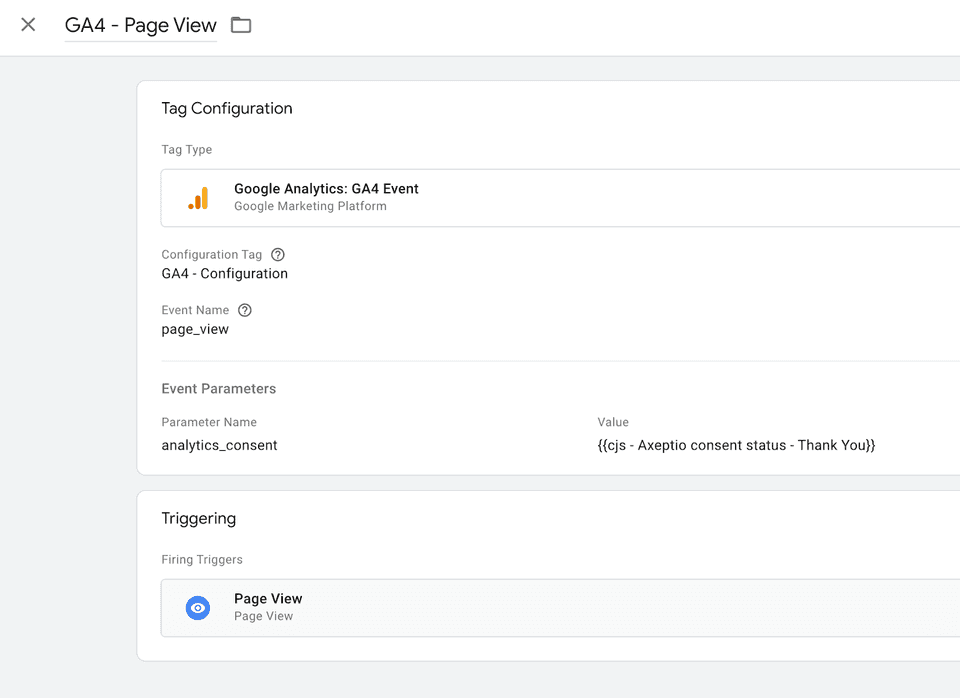
Then, you have to create another page_view tag triggered when a user changes his analytics consent. Either on acceptance or refusal.
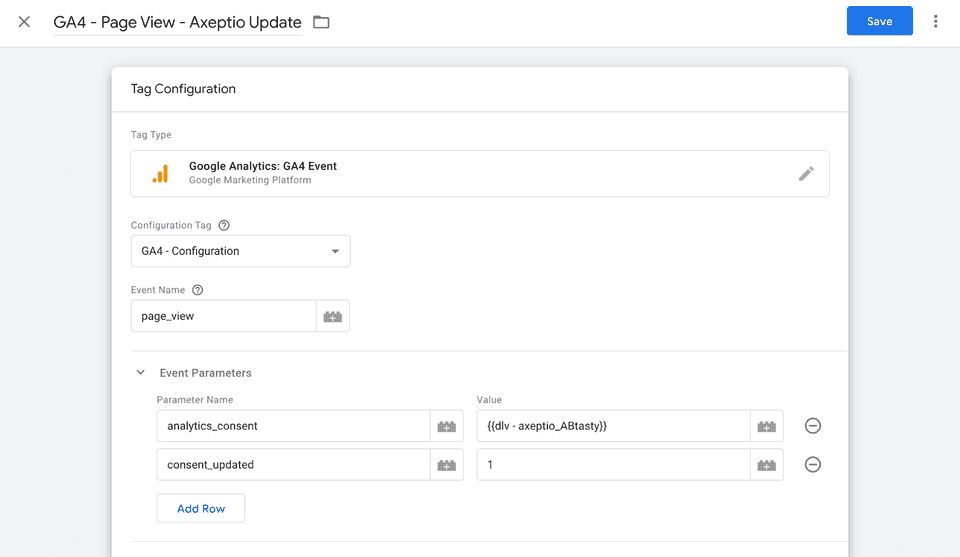
The analytics_consent parameter is the same as before, but we need to add another one named consent_updated. This one is a static value and has to be 1.
Again, be careful about the consent status for each tag on the server side.
The purchase GA4 tag doesn't require any modification if the tracking is properly done.
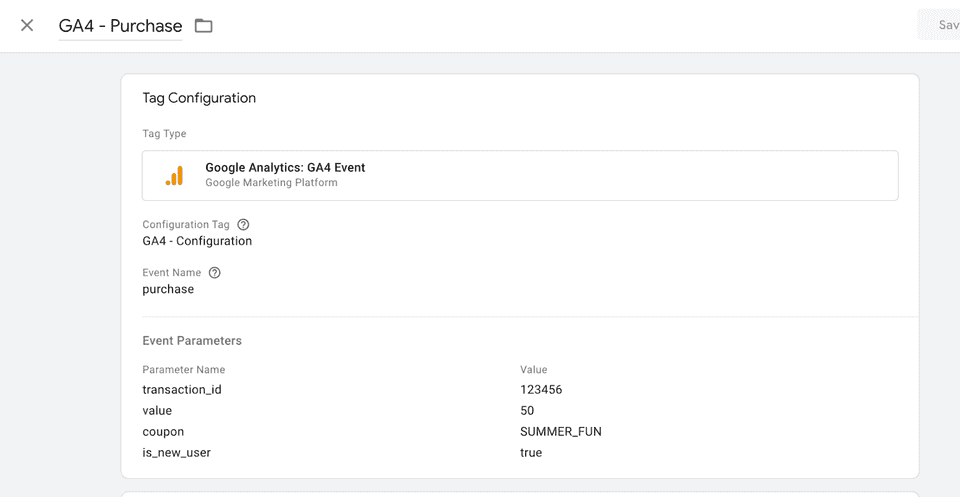
The only required parameters are transaction_id and value. The optional parameters are coupon and any other custom parameters that need to be sent to ThankYou Analytics. In our case, we had the is_new_user parameter on the server-side configuration, so we added it here.
Configuration Parameter
Clés | Type | Obligatoire | Description |
transaction_id | string | Yes | Unique conversion identifier |
value | number | Yes | Amount of conversion |
viewport | string | Yes | Navigation window size (see section below) |
coupon | string | No | Coupon used for conversion |
margin | number | No | MArgin of conversion |
currency | string | No | Currency of conversion in ISO4217 format |
%variableName% | string/number/boolean | No | Dynamic variables for creating customized filters. You can create as many variables as you need. |
The viewport is a mandatory data for ThankYou Analytics and not available by default in the GA4 tag.
In order to get it, you can use a custom variable of type Custom JavaScript:
function () {
  var viewport = {
    width: document.doctype ? Math.max(document.documentElement.clientWidth || 0, window.innerWidth || 0) : Math.max(window.innerWidth || 0),
    height: document.doctype ? Math.max(document.documentElement.clientHeight || 0, window.innerHeight || 0) : Math.max(window.innerHeight || 0),
  }
  return JSON.stringify(viewport);
}
Then in your GA4 tag, refer to this variable for a new Configuration Parameter named viewport.
As part of the consent exemption, we recommend adding a link to the "privacy policy" page so that web users can deactivate tracking for audience measurement purposes.
Tag code
Create a new tag of type Custom HTML to create a Do Not Track cookie.
<script>

  var cookieName = 'ty_dnt';
  var domainName = '';

  var ThankYou = {
    doNotTrack: function doNotTrack() {
      var date = new Date();

      // Set the expiration date to 6 months from now
      date.setTime(date.getTime() + 6 * 30 * 24 * 60 * 60 * 1000);

      document.cookie =
        cookieName +
        '=true; expires = ' +
        date.toUTCString() +
        ';path=/; SameSite=Lax; Secure; domain=' +
        domainName;

    },
    doTrack: function doTrack() {
      document.cookie =
        cookieName +
        '=; Expires=Thu, 01 Jan 1970 00:00:01 GMT;path=/; SameSite=Lax; Secure; domain=' +
        domainName;
    }
  };
</script>
Variables
Key | Type | Mandatory | Description |
cookieName | string | Yes | Must be the value of the "Cookie Name Do Not Track" attribute within the GTM server-side setup. If none set, keep "ty_dnt". |
domainName | string | Yes | Must be the value of the "Cookie Domain" attribut within the GTM server-side setup except if the value is "auto", in which case it must be replaced with a proper domain name. |
Triggers
Trigger this tag on all pages.
Call function Do Not Track
To deactivate the collection of anonymous data, simply implement an HTML button with a call to the Do Not Track function:
<button onclick="ThankYou.doNotTrack()">
  Deactivate audience measurement cookies
</button>
Call function Do Track
To activate the collection of anonymous data, simply implement an HTML button with a call to the Do Track function:
<button onclick="ThankYou.doTrack()">
  Activate audience measurement cookies
</button>